Send your quote
Last updated: October 18, 2026
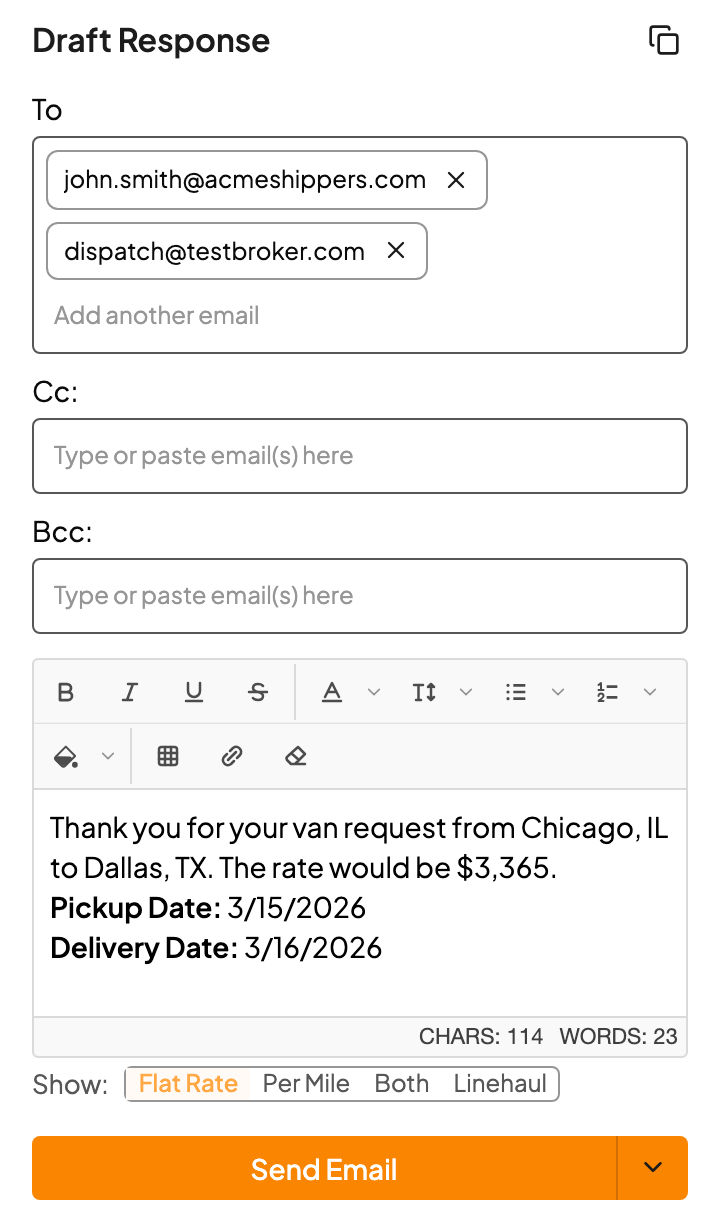
Once your bill rate looks right, Draft Response at the bottom of the sidebar has your reply written and addressed to whoever sent the request. Make it yours, then send.
Make it yours
- Edit the text like any email: bold the rate, add a note about timing, change the greeting.
- Choose how the rate shows with Show: Flat Rate, Per Mile, Both, or Linehaul.
- Add people in Cc or Bcc.
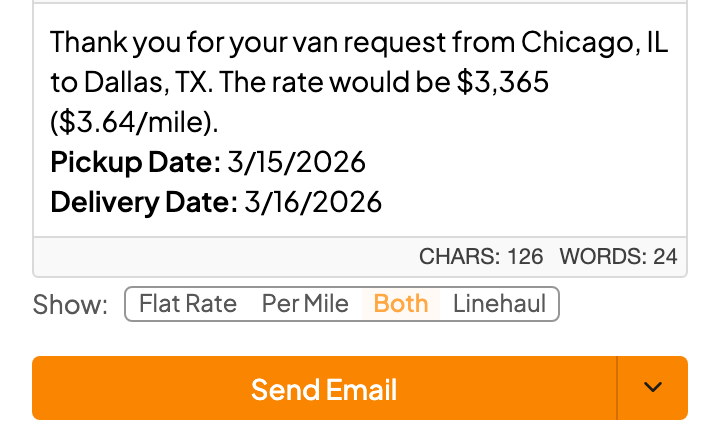
Click outside the editor after you make changes so they're saved before you send.
Send it
| Choose | When |
|---|---|
| Send Email | You're happy with it. It goes out on the customer's thread right away. |
| Draft Email (in the dropdown) | You want one more look. It's saved to your Outlook Drafts. |
| Add reply to current draft | You already have a reply open in Outlook. The quote drops into it. |
| Copy icon | You want to paste it somewhere yourself. |
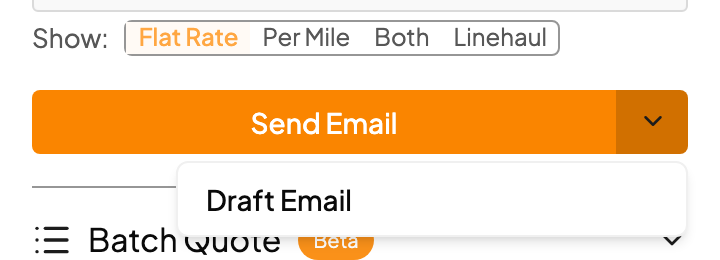
Why send from Drumkit?
Sending, drafting or copying from Drumkit marks the request as Quoted, so Kit can show you what's handled and what's still waiting. If you retype the number in Outlook, Drumkit can't tell you quoted it and the request stays open.
FAQs
The send buttons are grey.
There's no one in the To field. Add the customer's address and they'll light up.
I'm in a shared mailbox and there's no Send button.
In shared mailboxes you'll see Copy to clipboard instead. Copy the reply and paste it into Outlook.
Drumkit says my email is "Not Sent", but I sent it.
Drumkit sometimes can't find the sent copy, depending on how your Outlook folders are set up. Your email did go out. If it keeps happening, let us know and we'll check your setup.
Can I change the default wording of the reply?
Yes. Email support@drumkit.ai with the wording you'd like and we'll set it up.
Related